
An intro to finding things in Linux
locate, whereis, which and find commands
Let's take a look at these commands:
locate
whereis
which
find
The locate command
This command will go through your entire filesystem and locate every occurrence of that keyword, so you can image that the results can be overwhelming.
locate keywordlocate uses a database that is usually updated once a day, so if you're searching for something that was created recently, it might not return in your search. You can use the
updatedbcommand to manually update the locate command's database.
locate aircrack-ng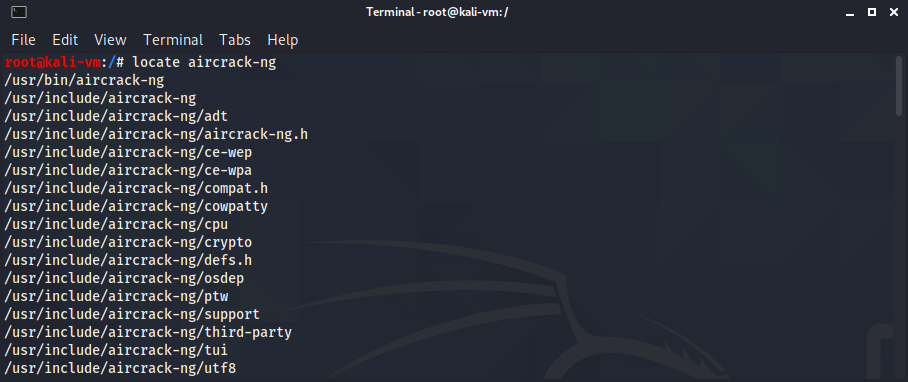
The whereis command
In Linux, executable files are called binaries, if you want to locate a binary, whereis is more efficient than locate.
whereis binaryThis command will return the binaries location, its source and the man page if available
whereis aircrack-ng
The which command
The PATH variable in Linux holds the directories in which the operating system looks for the commands you execute in the command line.
which binaryThe which command locates an a binary in your PATH. If it doesn’t find the binary in the current PATH, it returns nothing.
which aircrack-ng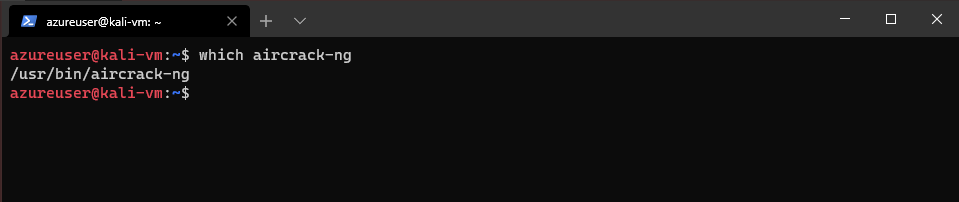
These directories typically include /usr/bin but may include /usr/sbin and a few others.
The find command
The most powerful searching command is the find command. You can use it to search in any designated directory and use a variety of parameters.
The basic syntax is:
find directory options expressionLet's say I have a file named test.txt and I need to find it but am not sure what exact directory it's in. I can execute the following to search starting from the top of the file system /
find / -type f -name test.txt/means from the top of the file system-typeis what you are looking for,fmeans file,bmeans block special device file,ccharacter special device file,ddirectory,lsymbolic link.-nameis the name you are looking for, results will match exactly.

A search that looks in every directory, starting from the top, can take a while. We can speed things up by providing a directory, let's say I know this file is in the home directory.
time find /home -type f -name test.txtI used the time command here so we can see how long each command took.
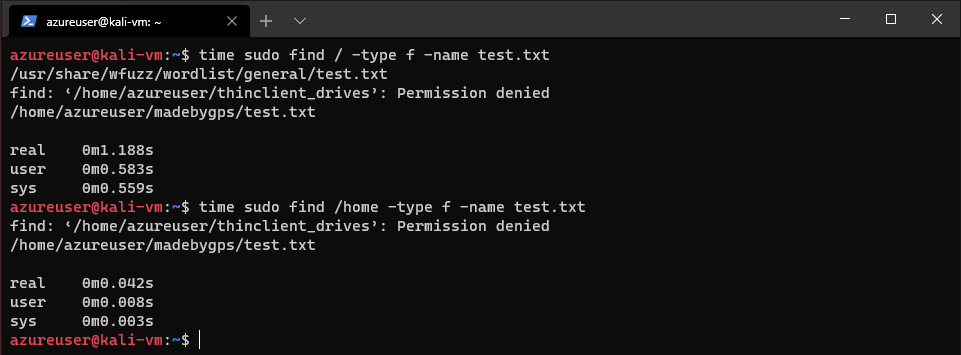
The find command only displays exact name matches. If file.txt had a different extension, it would not have been returned. I've created another file test.conf and now if I search with find only using test.txt as the name, I no longer get the test.conf file returned.

We can work around this limitation by using wildcards. They let us match multiple characters and come in a few different forms:
Let's say we have a directory with files cat, hat, what, and bat
*matches multiple characters*atwould match: cat, hat, what, and bat.?matches a single character?atwould match cat, hat, bat but not what.[]matches character that appear inside the square brackets[c,b]would match cat and bat
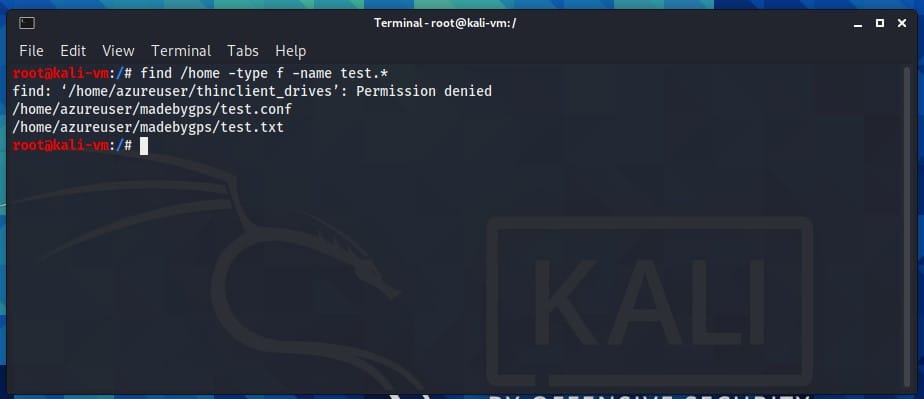
find /home -type f -name test.*
find supports plenty of tests and even operators, let's say we wanted to find all the files with permissions that are not 0600 and the directories that are not 0700.
find ~ \( -type f -not -perm 0600 \) -or \( -type d -not perm 0700 \)this command says: find all files where permissions are not 0600 or all directories where permissions are not 0700.
find ~look in the~directory (home).\( -type f -not -perm 0600)The slash is escaping the parenthesis, we use parenthesis here to group tests and operators together to form a larger expression. By default,findevaluates from left to right. The-nottells us this test is a match if the result is false.-notcan be abbreviated with an!so this part could be\( -type f ! -perm 0600)as well-orThis is telling us that if either test is true, it's a match. Can be abbreviated to-o\( -type d -not perm 0700 \)another test, very similar to the first one, except the type here is directory.

find is a powerful command with many tests, make sure to look into it more.
and that's it for this intro to finding stuff in Linux :)